貳、Nesting rows and columns: 行與列的嵌套

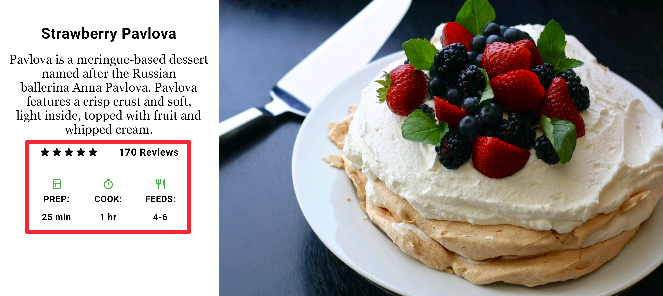
在頁面的建構上,時常會有行與列的嵌套、群組的需求,因此接下來我們會用星等評論的組件來說明。回到前面提到的範例中,我們可以看到紅框處兩行(星等與評論項目)

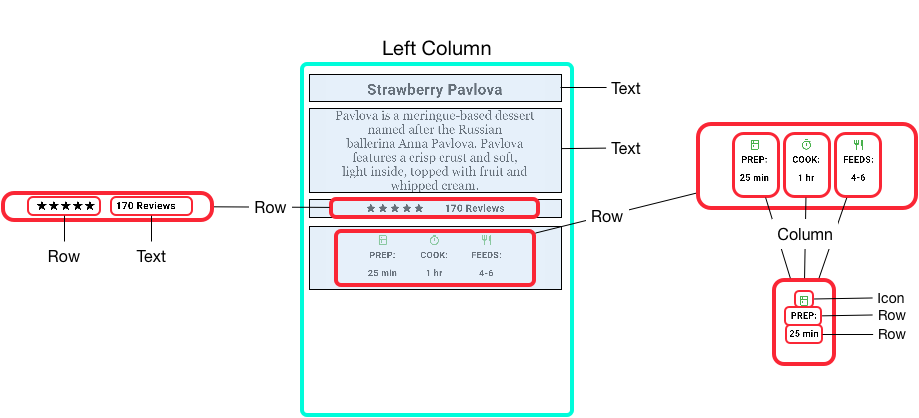
由元建樹的概念,我們可以知道他是由兩行主要的Row元件組成

並且,我們可以將兩個Row元件拆分如下:

一、星等

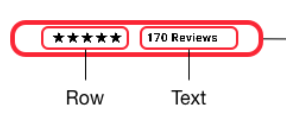
在星等中,我們可以看到它是由左方的五顆星與右方的文字所組成,拆分結構如下:

星等圖示
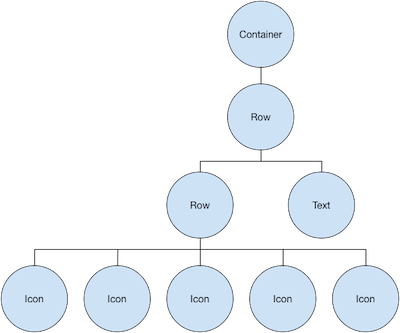
星等元件樹


星等變數製作

我們會先用starts變數儲存五顆星的組件群組

1
2
3
4
5
6
7
8
9
10
var stars = Row( //五顆星組件
mainAxisSize: MainAxisSize.min,
children: [
Icon(Icons.star, color: Colors.green[500]),
const Icon(Icons.star, color: Colors.black),
],
);

starts變數製作

並且再用rating變數,將文字內容與starts變數結合使用

  • 利用將UI元件化為變數使用的技巧,可以避免大量的元件堆疊造成混亂,也可以更方便理解!
1
2
3
4
5
6
7
8
9
10
11
12
13
14
15
16
17
18
19
final ratings = Container(
padding: const EdgeInsets.all(20),
child: Row(
mainAxisAlignment: MainAxisAlignment.spaceEvenly,
children: [
stars,//五顆星組件
const Text(
'170 Reviews',
style: TextStyle(
color: Colors.black,
fontWeight: FontWeight.w800,
fontFamily: 'Roboto',
letterSpacing: 0.5,
fontSize: 20,
),
),
],
),
);

ratings變數製作

星等程式呈現

在整體使用上,可以看到在build函數內,我們僅需呼叫rating變數,就可以呈現整個五顆星元件的群組

1
2
3
4
5
6
7
8
9
10
11
12
13
14
15
16
17
18
19
20
21
22
23
24
25
26
27
28
29
30
31
32
33
34
35
36
37
38
39
40
41
42
43
44
45
46
47
48
49
50
51
52
import 'package:flutter/material.dart';

void main() {
runApp(MyApp());
}

var stars = Row( //五顆星組件
mainAxisSize: MainAxisSize.min,
children: [
Icon(Icons.star, color: Colors.green[500]),
const Icon(Icons.star, color: Colors.black),
],
);

final ratings = Container(
padding: const EdgeInsets.all(20),
child: Row(
mainAxisAlignment: MainAxisAlignment.spaceEvenly,
children: [
stars,//五顆星組件
const Text(
'170 Reviews',
style: TextStyle(
color: Colors.black,
fontWeight: FontWeight.w800,
fontFamily: 'Roboto',
letterSpacing: 0.5,
fontSize: 20,
),
),
],
),
);

class MyApp extends StatelessWidget {
@override
Widget build(BuildContext context) {
return MaterialApp(
home: Scaffold(
appBar: AppBar(
title: const Text('Star Icons'),
),
body: Center(
child: ratings,//在主程式中只要呼叫ratings變數即可!
),
),
);
}
}

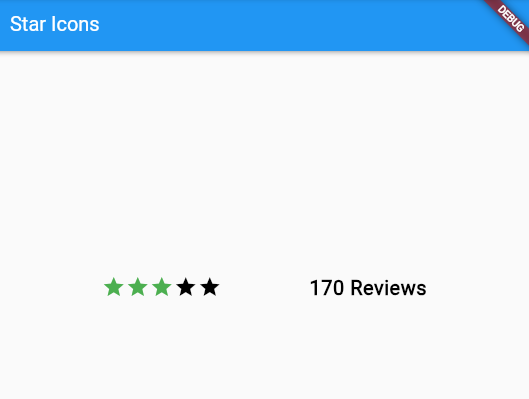
星等程式呈現

  • 輸出結果

二、評論項目

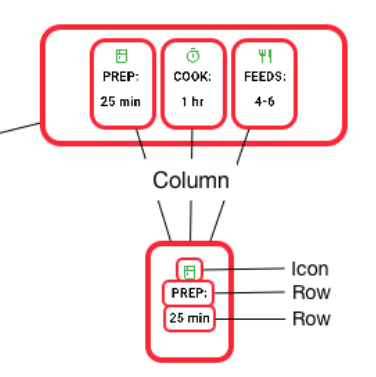
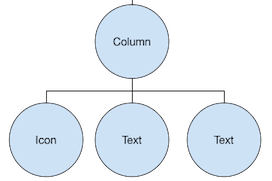
在評論項目中,我們可以看到它是由三個Column(PREP, COOK, FEEDS)所組成,每個Column的結構拆分結構如下:

評論項目圖示
單一評論項目元件樹


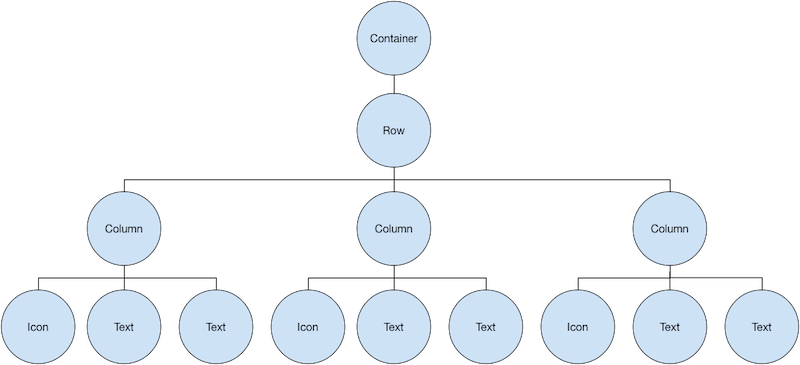
評論項目的三個Column結合成的總體元件樹:

評論項目變數製作

我們使用同樣的方式,使用iconList來存放評分項目的UI呈現

1
2
3
4
5
6
7
8
9
10
11
12
13
14
15
16
17
18
19
20
21
22
23
24
25
26
27
28
29
30
31
32
final iconList = DefaultTextStyle.merge( //定義iconList變數為評分項目UI的群駔
style: descTextStyle,
child: Container(
padding: const EdgeInsets.all(20),
child: Row(
mainAxisAlignment: MainAxisAlignment.spaceEvenly,
children: [
Column(
children: [
Icon(Icons.kitchen, color: Colors.green[500]),
const Text('PREP:'),
const Text('25 min'),
],
),
Column(
children: [
Icon(Icons.timer, color: Colors.green[500]),
const Text('COOK:'),
const Text('1 hr'),
],
),
Column(
children: [
Icon(Icons.restaurant, color: Colors.green[500]),
const Text('FEEDS:'),
const Text('4-6'),
],
),
],
),
),
);

iconList變數製作

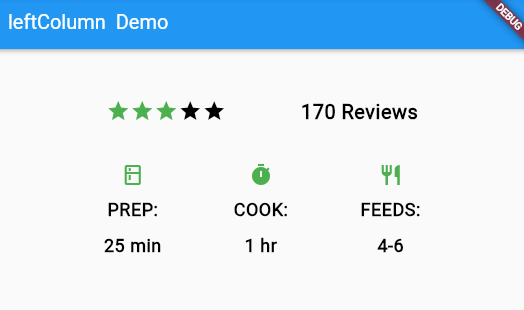
三、星等評論整體組件

我們再宣告一個變數leftColumn,將ratings與iconList結合

1
2
3
4
5
6
7
8
9
final leftColumn = Container(
padding: const EdgeInsets.fromLTRB(20, 30, 20, 20),
child: Column(
children: [
ratings,
iconList,
],
),
);

星等評論整體組件程式呈現

1
2
3
4
5
6
7
8
9
10
11
12
13
14
15
16
17
18
19
20
21
22
23
24
25
26
27
28
29
30
31
32
33
34
35
36
37
38
39
40
41
42
43
44
45
46
47
48
49
50
51
52
53
54
55
56
57
58
59
60
61
62
63
64
65
66
67
68
69
70
71
72
73
74
75
76
77
78
79
80
81
82
83
84
85
86
87
88
89
90
91
92
93
94
95
96
97
98
99
100
101
102
103
104
import 'package:flutter/material.dart';

void main() {
runApp(MyApp());
}

var stars = Row(
mainAxisSize: MainAxisSize.min,
children: [
Icon(Icons.star, color: Colors.green[500]),
const Icon(Icons.star, color: Colors.black),
],
);

final ratings = Container(
padding: const EdgeInsets.all(20),
child: Row(
mainAxisAlignment: MainAxisAlignment.spaceEvenly,
children: [
stars,
const Text(
'170 Reviews',
style: TextStyle(
color: Colors.black,
fontWeight: FontWeight.w800,
fontFamily: 'Roboto',
letterSpacing: 0.5,
fontSize: 20,
),
),
],
),
);

const descTextStyle = TextStyle(
color: Colors.black,
fontWeight: FontWeight.w800,
fontFamily: 'Roboto',
letterSpacing: 0.5,
fontSize: 18,
height: 2,
);

final iconList = DefaultTextStyle.merge( //DefaultTextStyle為默認文字型態
style: descTextStyle,
child: Container(
padding: const EdgeInsets.all(20),
child: Row(
mainAxisAlignment: MainAxisAlignment.spaceEvenly,
children: [
Column(
children: [
Icon(Icons.kitchen, color: Colors.green[500]),
const Text('PREP:'),
const Text('25 min'),
],
),
Column(
children: [
Icon(Icons.timer, color: Colors.green[500]),
const Text('COOK:'),
const Text('1 hr'),
],
),
Column(
children: [
Icon(Icons.restaurant, color: Colors.green[500]),
const Text('FEEDS:'),
const Text('4-6'),
],
),
],
),
),
);

final leftColumn = Container(
padding: const EdgeInsets.fromLTRB(20, 30, 20, 20),
child: Column(
children: [
ratings,
iconList,
],
),
);

class MyApp extends StatelessWidget {
@override
Widget build(BuildContext context) {
return MaterialApp(
home: Scaffold(
appBar: AppBar(
title: const Text('leftColumn Demo'),
),
body: Center(
child: leftColumn,//在主程式中只要呼叫leftColumn變數即可!
),
),
);
}
}

星等評論整體組件程式呈現

  • 輸出結果