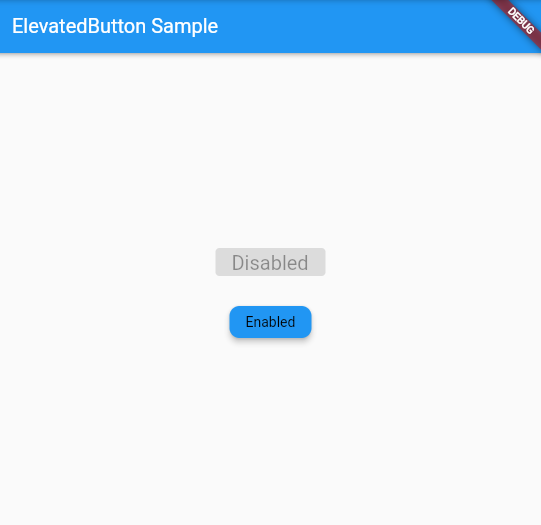
Flutter中也提供不同的按鈕元件,這裡我們以EvaluatedButton為例。這是一個提供視覺層次感的按鈕元件,當按下按鈕時,Material.elevation 屬性會增加。label中的 Text 和 Icon 漸會以 ButtonStyle.foregroundColor 的樣式顯示,按鈕的填充背景顏色由 ButtonStyle.backgroundColor 決定。
若是要參考其他的Button元件也可以到FilledButton、OutlinedButton、TextButton等頁面查詢相關格式與使用方式!
style:代表樣式設定
ButtonStyle.foregroundColor(前景色):指定按鈕文本和圖示的顏色。
ButtonStyle.backgroundColor(背景顏色):定義按鈕的背景顏色。
ButtonStyle.elevation(陰影高度):設定按鈕的陰影高度。這會影響按鈕按下時的視覺效果,增加按鈕的立體感。
ButtonStyle.side(邊框):可以定義按鈕的邊框樣式,包括顏色、寬度等屬性。
ButtonStyle.padding(內邊距):指定按鈕的內邊距,即按鈕內容與按鈕邊界之間的距離。
ButtonStyle.shape(形狀):定義按鈕的形狀,例如圓角、矩形等。可以使用 RoundedRectangleBorder、CircleBorder 等形狀物件。
ButtonStyle.minimumSize(最小尺寸):設定按鈕的最小尺寸
ButtonStyle.maximumSize(最大尺寸):指定按鈕的最大尺寸
onPressed: 可以放入按下按鈕後的行為
child: 通常會放置按鈕內的元素,像是文字、Icon、圖片等
1
2
3
4
5
6
7
8
9
10
11
12
13
| ElevatedButton(
style: ButtonStyle(
backgroundColor: MaterialStateProperty.all(Colors.blue), // 背景顏色
foregroundColor: MaterialStateProperty.all(Colors.black), // 文字顏色
elevation: MaterialStateProperty.all(6), // 按下按鈕的陰影高度
shape: MaterialStateProperty.all(RoundedRectangleBorder(
borderRadius: BorderRadius.circular(10.0), // 圓角設定
)),
padding: MaterialStateProperty.all(const EdgeInsets.all(16.0)), // 內邊距
),
onPressed: () {},//按下後的行為
child: const Text('Enabled'),
),
|
EvaluatedButton用法
1
2
3
4
5
6
7
8
9
10
11
12
13
14
15
16
17
18
19
20
21
22
23
24
25
26
27
28
29
30
31
32
33
34
35
36
37
38
39
40
41
42
43
44
45
46
47
48
49
50
51
52
53
54
55
56
57
58
59
60
61
| import 'package:flutter/material.dart';
/// Flutter code sample for [ElevatedButton].
void main() => runApp(const ElevatedButtonExampleApp());
class ElevatedButtonExampleApp extends StatelessWidget {
const ElevatedButtonExampleApp({super.key});
@override
Widget build(BuildContext context) {
return MaterialApp(
home: Scaffold(
appBar: AppBar(title: const Text('ElevatedButton Sample')),
body: const ElevatedButtonExample(),
),
);
}
}
class ElevatedButtonExample extends StatefulWidget {
const ElevatedButtonExample({super.key});
@override
State<ElevatedButtonExample> createState() => _ElevatedButtonExampleState();
}
class _ElevatedButtonExampleState extends State<ElevatedButtonExample> {
@override
Widget build(BuildContext context) {
final ButtonStyle style =
ElevatedButton.styleFrom(textStyle: const TextStyle(fontSize: 20));
return Center(
child: Column(
mainAxisSize: MainAxisSize.min,
children: <Widget>[
ElevatedButton(
style: style, //樣式,style為預設
onPressed: null,//按下後的行為,null代表無法互動
child: const Text('Disabled'),
),
const SizedBox(height: 30),
ElevatedButton(
style: ButtonStyle(
backgroundColor: MaterialStateProperty.all(Colors.blue), // 背景顏色
foregroundColor: MaterialStateProperty.all(Colors.black), // 前景顏色
elevation: MaterialStateProperty.all(6), // 陰影高度
shape: MaterialStateProperty.all(RoundedRectangleBorder(
borderRadius: BorderRadius.circular(10.0), // 圓弧設定
)),
padding: MaterialStateProperty.all(const EdgeInsets.all(16.0)), // 內邊距
),
onPressed: () {},//按下後的行為
child: const Text('Enabled'),
),
],
),
);
}
}
|
EvaluatedButton使用範例
五、Container
Container是一個可以添加填充、邊框、裝飾等視覺效果的容器元件,可以根據需要自動調整大小,也可以使用指定的寬度、高度。
Container 基本屬性與格式
color:顏色
width:寬度
height:高度
margin:外邊距(元件邊界往外的間隙)。
constraints:尺寸的約束條件。
padding:內邊距(元件邊界往內的間隙)。
alignment:對齊方式。
transform:旋轉角度。
Container使用範例
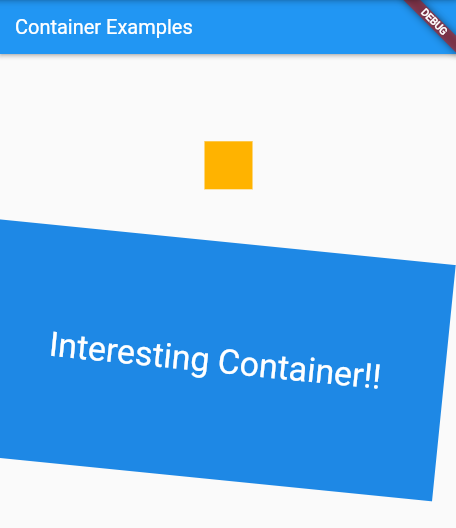
這個範例中,我們示範了兩個不同的Container,且可以從程式中看到各個屬性的調整用法!
1
2
3
4
5
6
7
8
9
10
11
12
13
14
15
16
17
18
19
20
21
22
23
24
25
26
27
28
29
30
31
32
33
34
35
36
37
38
39
40
41
42
43
44
45
46
47
48
49
50
51
52
| import 'package:flutter/material.dart';
void main() {
runApp(MyApp());
}
class MyApp extends StatelessWidget {
@override
Widget build(BuildContext context) {
return MaterialApp(
home: MyHomePage(),
);
}
}
class MyHomePage extends StatelessWidget {
@override
Widget build(BuildContext context) {
return Scaffold(
appBar: AppBar(
title: const Text('Container Examples'),
),
body: Center(
child: Column(
mainAxisAlignment: MainAxisAlignment.center,
children: [
Container(
margin: const EdgeInsets.all(10.0),//外邊距為10像素
color: Colors.amber[600],
width: 48.0,
height: 48.0,
),
const SizedBox(height: 20.0), // 添加垂直間距
Container(
constraints: BoxConstraints.expand(//大小約束條件,使容器的高度根據條件值動態調整
height: Theme.of(context).textTheme.headlineMedium!.fontSize! * 1.1 + 200.0,
),
padding: const EdgeInsets.all(8.0),//內邊距8像素
color: Colors.blue[600],
alignment: Alignment.center,//置中對齊
transform: Matrix4.rotationZ(0.1),//旋轉0.1弧度
child: Text(
'Hello World',
style: Theme.of(context).textTheme.headlineMedium!.copyWith(color: Colors.white),
),
),
],
),
),
);
}
}
|
Container使用範例
六、AppBar: 應用欄
我們在Flutter程式中,都會看到上方有一個AppBar的項目,紀錄著應用欄元件,包含leading(左側圖標)、title(標題)和actions(操作按鈕),以及Bottom(底部)。
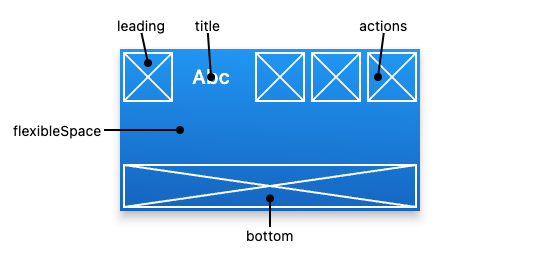
參見: AppBar class,位置相關項目說明圖示
AppBar通常被放置在Scaffold的appBar屬性中,將其作為一個固定高度的小部件置於屏幕頂部。對於可滾動的應用欄,可以查看SliverAppBar,它將AppBar嵌套在一個sliver中,方便我在CustomScrollView,滾動的案例中使用。
Leading, Title與Actions
Title
title,用於設置應用欄的標題,位於中央。
可以是一個文字、圖片或其他自定義內容元件。
action
AppBar使用範例
我們可以看到,在範例中程式碼依序寫入了leading, title與actions,並使用IconButton元件,進行點擊時的互動。其中,tooltip是代表當滑鼠移動到上方時,會採取的動作
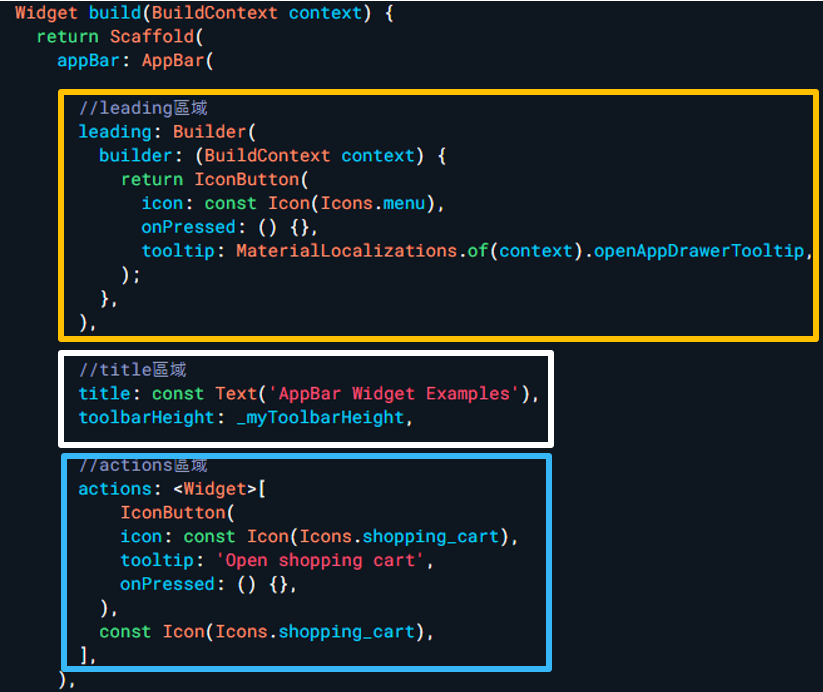
黃框、白框、藍框由上而下依序代表leading, title與actions的放置位置
1
2
3
4
5
6
7
8
9
10
11
12
13
14
15
16
17
18
19
20
21
22
23
24
25
26
27
28
29
30
31
32
33
34
35
36
37
38
39
40
41
42
43
44
45
46
47
48
49
50
| import 'package:flutter/material.dart';
void main() => runApp(MyApp());
class MyApp extends StatelessWidget {
@override
Widget build(BuildContext context) {
return MaterialApp(
home: MyHomePage(),
);
}
}
class MyHomePage extends StatelessWidget {
final double _myToolbarHeight = 56.0;
@override
Widget build(BuildContext context) {
return Scaffold(
appBar: AppBar(
//leading區域
leading: Builder(
builder: (BuildContext context) {
return IconButton(
icon: const Icon(Icons.menu),
onPressed: () {},
tooltip: MaterialLocalizations.of(context).openAppDrawerTooltip,
);
},
),
//title區域
title: const Text('AppBar Widget Examples'),
toolbarHeight: _myToolbarHeight,
//actions區域
actions: <Widget>[
IconButton(
icon: const Icon(Icons.shopping_cart),
tooltip: 'Open shopping cart',
onPressed: () {},
),
const Icon(Icons.shopping_cart),
],
),
);
}
}
|
AppBar使用範例
- 輸出結果
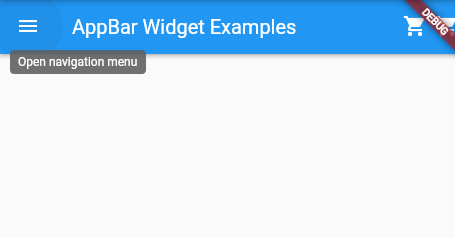
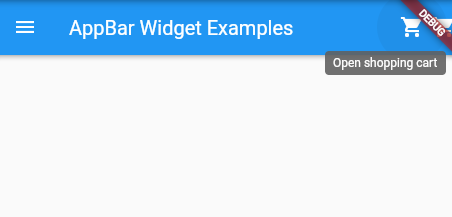
可以看到當滑鼠移動到leading與actions的兩個iconbutton時會顯示不同的懸浮文字
七、Scaffold
Scaffold元件提供了頁面建構的基礎,提供了一個簡單的框架讓我們實行AppBar、Drawer(側邊欄)、Bottom Sheet(底部表單)等元件功能
Scaffold架構
基本上,一個簡單的Scaffold架構如下方顯示,會依序放置appBar、body(頁面主體)、與bottomNavigationBar(下方導覽欄)或是其他所需區塊,其中,這些區塊會以冒號:作為開頭,並在裡面放置需要用到的元件,層遞疊加
1
2
3
4
5
6
7
8
9
10
| Scaffold(
appBar: //AppBar放置位置
body: //頁面主體內容
bottomNavigationBar: //下方欄
//可疊加其他需要功能
),
|
簡易Scaffold架構
Scaffold使用範例
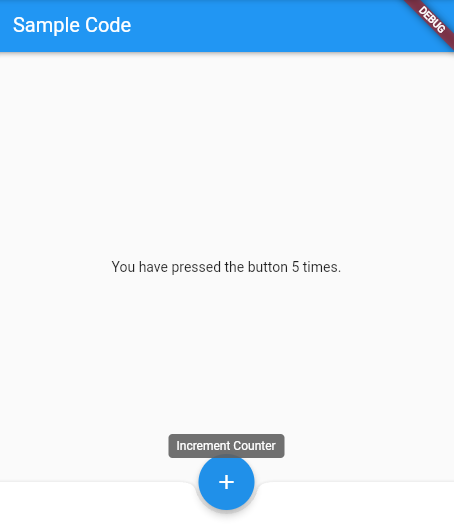
以下程式將Flutter demo code的計數器增添下方欄與浮動按鈕的設計,達成了一個簡易的Scaffold計數器頁面展示,其中,BottomAppBar與FloatingActionButton的使用方式有興趣的朋友可以參見官網提供的範例,在此不加贅述
1
2
3
4
5
6
7
8
9
10
11
12
13
14
15
16
17
18
19
20
21
22
23
24
25
26
27
28
29
30
31
32
33
34
35
36
37
38
39
40
41
42
43
44
45
46
47
48
49
50
51
| import 'package:flutter/material.dart';
/// Flutter code sample for [Scaffold].
void main() => runApp(const ScaffoldExampleApp());
class ScaffoldExampleApp extends StatelessWidget {
const ScaffoldExampleApp({super.key});
@override
Widget build(BuildContext context) {
return const MaterialApp(
home: ScaffoldExample(),
);
}
}
class ScaffoldExample extends StatefulWidget {
const ScaffoldExample({super.key});
@override
State<ScaffoldExample> createState() => _ScaffoldExampleState();
}
class _ScaffoldExampleState extends State<ScaffoldExample> {
int _count = 0;
@override
Widget build(BuildContext context) {
return Scaffold(
appBar: AppBar(
title: const Text('Sample Counting Code'),
),
body: Center( //頁面主體
child: Text('You have pressed the button $_count times.'),
),
bottomNavigationBar: BottomAppBar(
shape: const CircularNotchedRectangle(), //圓角矩形,用於放置浮動按鈕
child: Container(height: 50.0),
),
floatingActionButton: FloatingActionButton(//FloatingActionButton(FAB),浮動按鈕
onPressed: () => setState(() {
_count++;
}),
tooltip: 'Increment Counter',
child: const Icon(Icons.add),
),
floatingActionButtonLocation: FloatingActionButtonLocation.centerDocked,
);
}
}
|
當游標到懸浮按鈕時會顯示字樣,並且點擊會觸發計數器的功能,並在頁面呈現更新後的次數